|
|
I wrote the content on these pages to be used by friends who needed some help fixing up their computer. I seem to be doing this a lot lately and thought this would be a good solution to send people to, especially if I can't be around to walk you through the process. Enjoy!
Removing Spyware · Disk Inconsistancies · Cleaning Your Drive · Performance Tuning
Antivirus Protection · Critical File Defragmenting · File System Defragmenting
Removing Spyware
-
Choose to download and install BOTH of the following:
-
Ad-Aware 2007 Free Edition
-
Spybot Search & Destroy 1.5
-
Start Ad-Aware (Start -> Program Files -> Lavasoft -> Ad-Aware 2007).
-
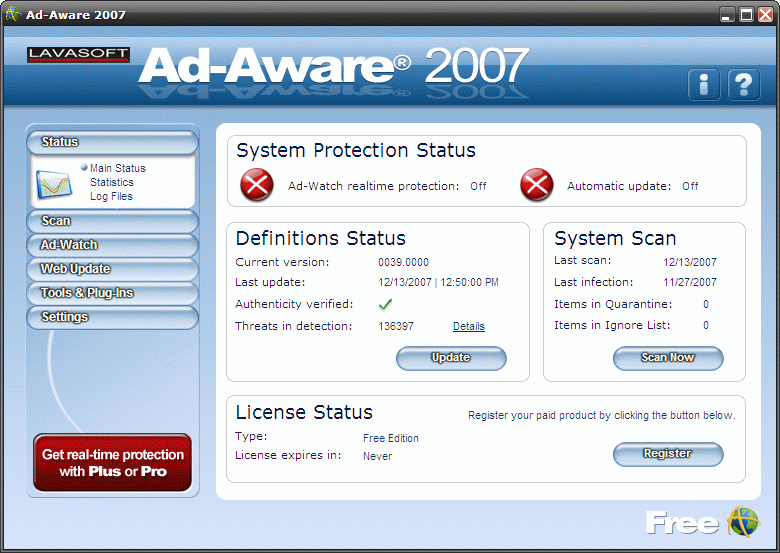
There's an Update button that you should use to make sure your spyware definitions are updated. Use it now and before each scan. If updates are found, you will be presented with a list that are pre-selected with the updates you should install. Simply click on Download and let it finish the update process from there.
-
At this screen, click the Scan Now button at the right side of the window.
-
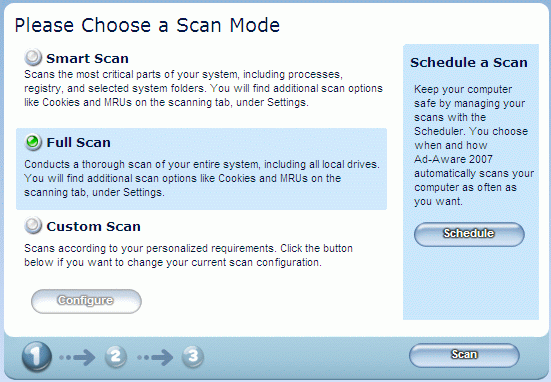
Choose to perform a full scan and then click on the Scan button.
-
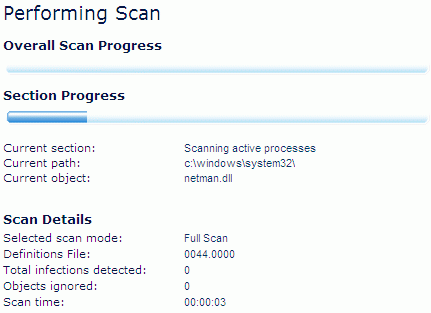
Ad-Aware will begin scanning your system for spyware. This can take anywhere from five to twenty minutes, sometimes even longer for it to finish.
-
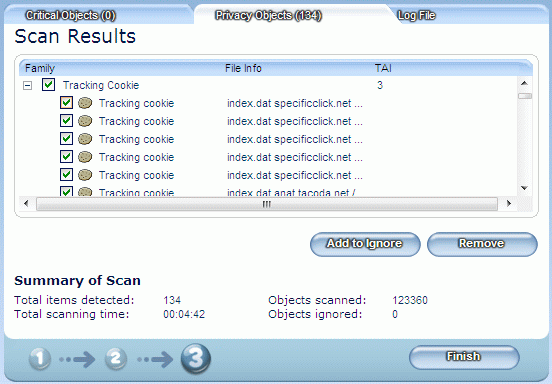
When Ad-Aware has finished, you will see a screen like the following, which may or may not show any detected spyware. You will most likely have at least Privacy Objects and should remove them. Click Next.
-
After removal, you may click the Finish button to finish the scan and return to the main screen.
-
You're done with Ad-Aware! You may need to run another scan if your computer was heavily infected, in case any residual files were left over.
-
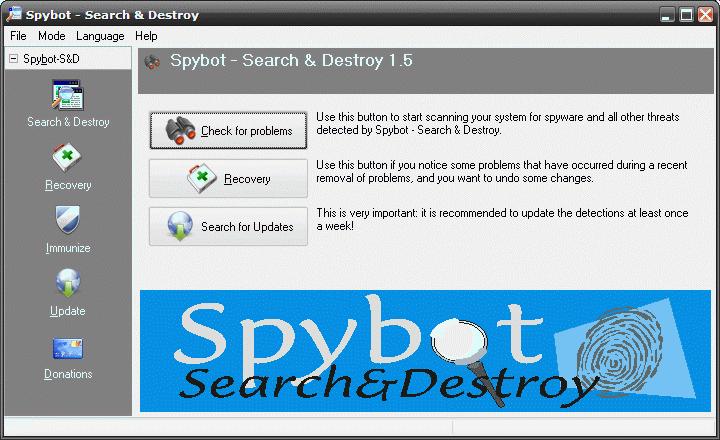
Now start Spybot Search & Destroy (Start -> Program Files -> Spybot - Search & Destroy). It may already be started if you just installed it: if so, the introductory windows should guide you through immunization, updates, and initial scanning. You will also be asked during installation and setup if you'd like to use internet explorer and Tea-Time real-time protection agents. Make sure that you do.
-
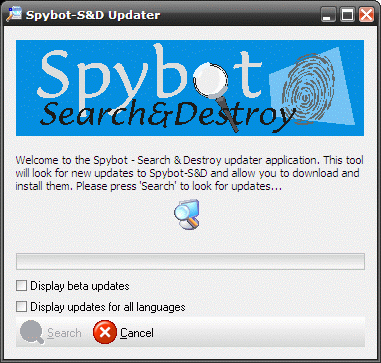
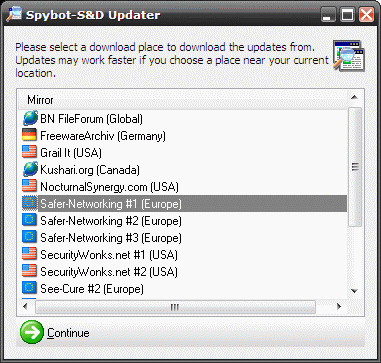
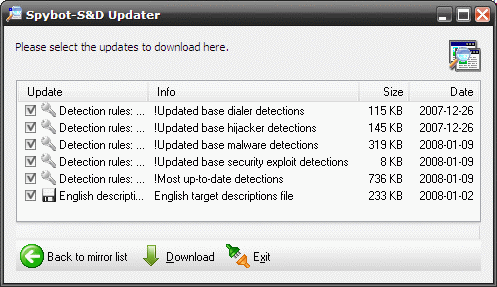
Click on the Update icon from the left and choose to update Spybot from any server you like.
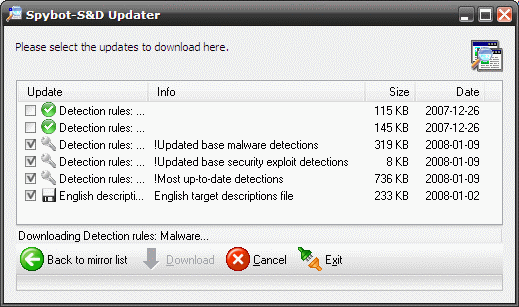
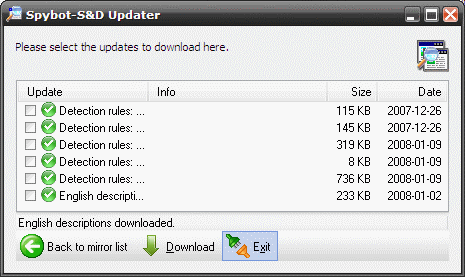
-
Now click the Immunize icon from the left.
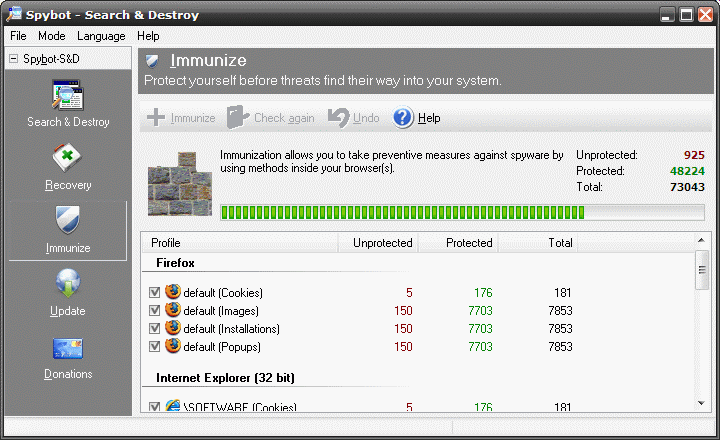
-
Click the Immunize button at the top to start the immunization process.
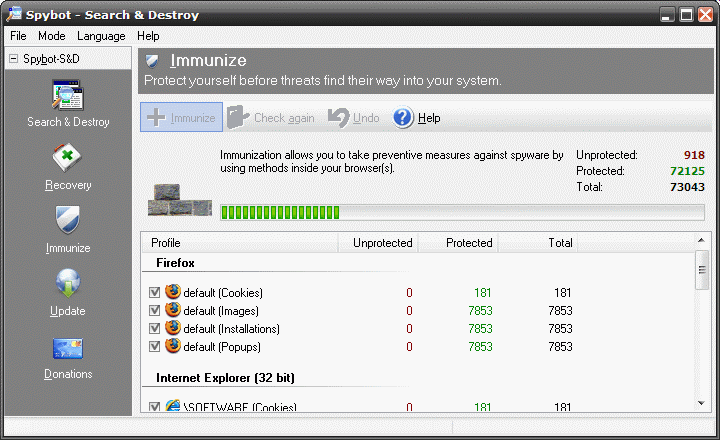
-
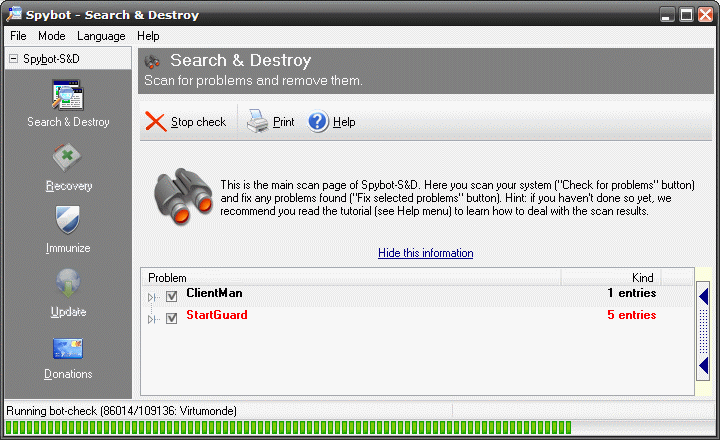
Finally, click the Search & Destroy icon from the left and the Check for problems button at the top to start a spyware scan.
-
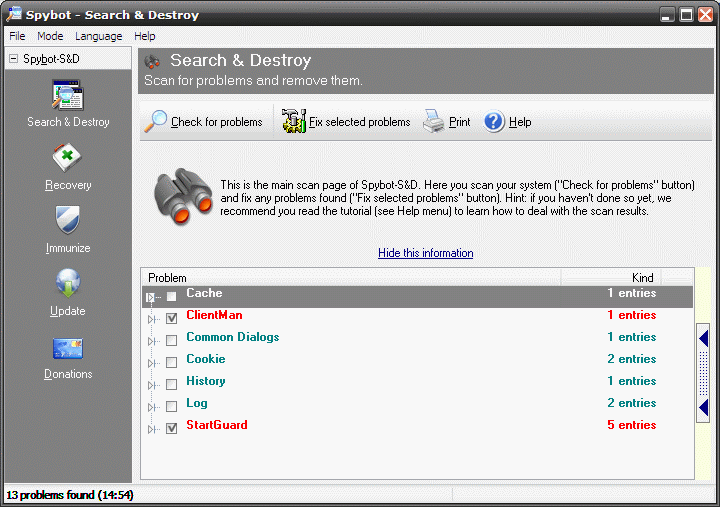
Following the scan, you should see a list of problems to fix, and the critical ones should all be checked by default. Click on Fix selected problems to proceed to the next step.
-
You're done with Spybot! You may need to run another scan if your computer was heavily infected, in case any residual files were left over.
-
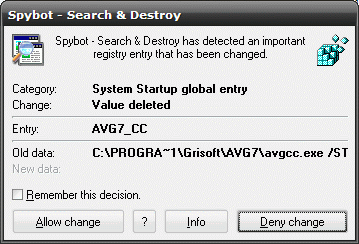
During real-time protection, SpyBot will alert you if changes are being made to your sytem that could have adverse effects. If you are installing software that you trust, you may Allow the changes. If you are not, please choose to Deny it. These prompts look like this:
Next Page >>
|
