|
|
I wrote the content on these pages to be used by friends who needed some help fixing up their computer. I seem to be doing this a lot lately and thought this would be a good solution to send people to, especially if I can't be around to walk you through the process. Enjoy!
Removing Spyware · Disk Inconsistancies · Cleaning Your Drive · Performance Tuning
Antivirus Protection · Critical File Defragmenting · File System Defragmenting
Cleaning Your Drive
-
Download install Crap Cleaner
You may wish to disable installation of any toolbars it prompts you about.
-
Start Crap Cleaner (Start -> Programs -> CCleaner)
-
Set the default Windows cleaning options as follows:
If you don't want Crap Cleaner to empty your recycle bin automatically for you, then disable that checkbox too.
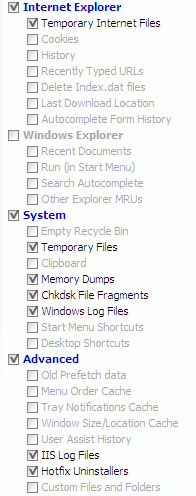
-
Under Options -> Advanced, set up the following options:
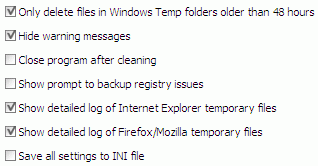
-
Click on Cleaner and then Run Cleaner to start the cleaning process.
This may take anywhere from a few seconds to several minutes while it scans and deletes purely junk/temporary/cached files on your computer. It will tell you when it's done as well as give you a report of deleted files and space freed.
-
Now click on Registry and then Scan for Issues to start the registry issue detection process.
-
When it is done, a list of registry issues may appear (if there are any). You can fix them by using the Fix slected issues button. Repeat this process a few times until the list is empty as some issues won't show up until others are repaired.
Next Page >>
|
